
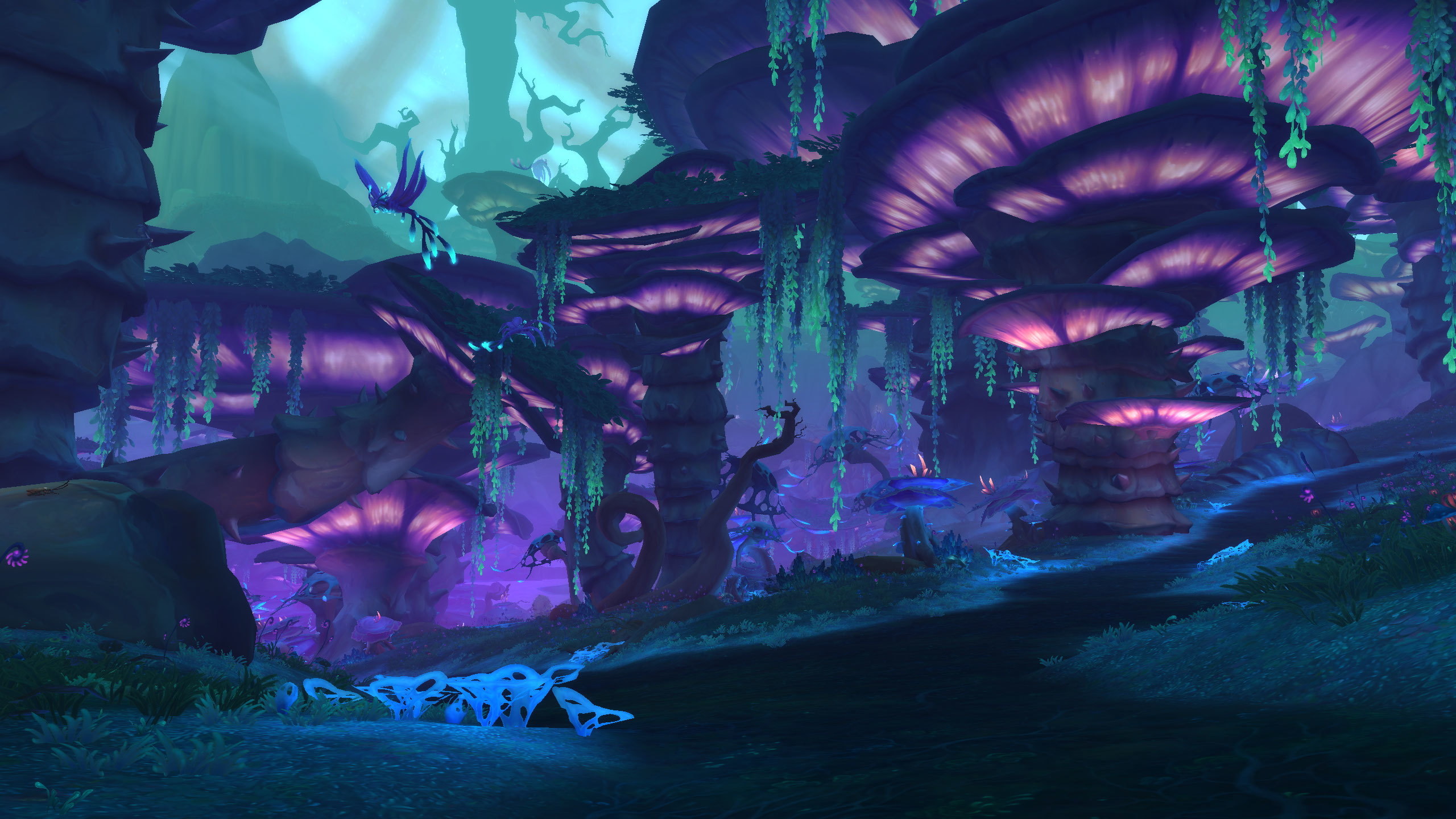
World of Warcraft: Midnight introduces significant graphical upgrades including the Void Lighting Engine, enhanced particle effects for Void magic, and completely revamped zone textures for the Quel’Thalas region, but these visual improvements have come with performance challenges for many players who are experiencing FPS drops, stuttering, and graphical errors particularly in the Ghostlands and other Void-corrupted zones where the Void Lighting Engine’s dynamic effects are most demanding. This comprehensive graphic settings optimization guide covers the best PC settings to fix FPS drops and stuttering in Midnight, the DirectX 11 vs DirectX 12 debate that has emerged in the community, the texture resolution workaround that has resolved performance issues for many players, and hardware-specific recommendations for achieving smooth gameplay across all Quel’Thalas zones.
The DirectX 11 vs DirectX 12 Solution
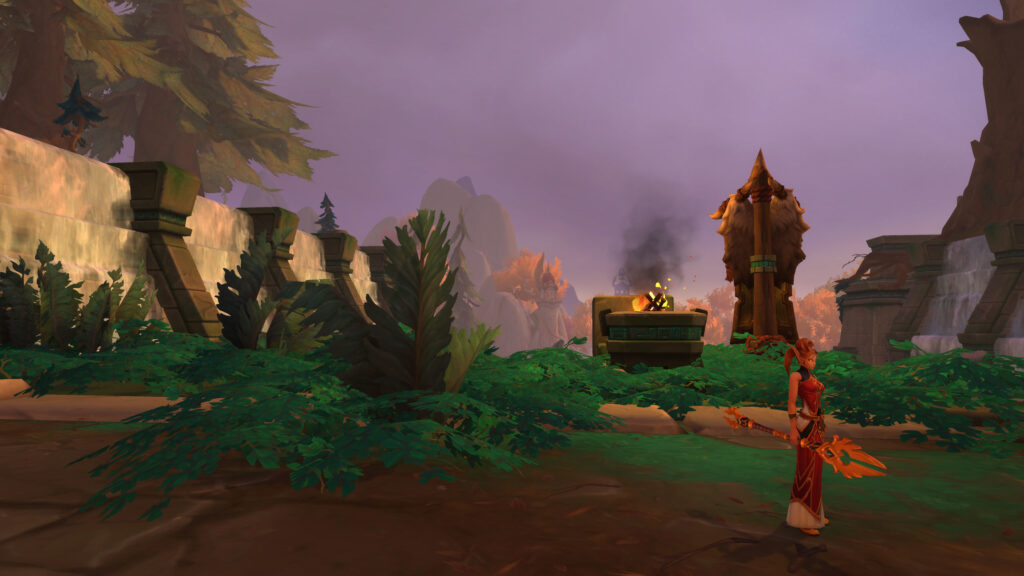
The single most effective fix for stuttering and FPS issues in World of Warcraft: Midnight is switching from DirectX 12 (the default Graphics API for the expansion) to DirectX 11 (Legacy) in the game’s Advanced Graphics settings. This solution has been widely validated by the community on Blizzard’s official forums, where thousands of players have reported that switching to DirectX 11 eliminates the freezes and stuttering that plagued their DirectX 12 experience, even though it may slightly reduce peak FPS in exchange for much more consistent frame pacing and the elimination of the micro-stutters that made the game feel unplayable for many users.
The stuttering issue with DirectX 12 in Midnight is attributed to the Void Lighting Engine’s shader compilation process, which causes periodic frame delays as new shaders are compiled on-the-fly when players enter new areas or encounter new visual effects for the first time. DirectX 11 handles shader compilation differently, pre-compiling shaders during the loading screen rather than on-the-fly during gameplay, which eliminates the micro-stutters at the cost of slightly longer loading screens and a small reduction in peak FPS in the most graphically demanding scenarios.
- How to Switch to DirectX 11: Open the game’s Options menu, navigate to Graphics → Advanced Settings, and change the “Graphics API” dropdown from “DirectX 12” to “DirectX 11 (Legacy).” Restart the game for the change to take effect.
- Expected Results: Most players who switch to DirectX 11 report the elimination of micro-stutters and frame freezes, with frame pacing becoming significantly smoother even if the maximum FPS number is 5-10% lower than the DirectX 12 peak.
- Trade-offs: DirectX 11 may exhibit slightly reduced visual quality for certain Void Lighting Engine effects (particularly volumetric light shafts and dynamic shadow mapping), but the visual difference is minimal and the performance improvement is substantial enough that the vast majority of players prefer DirectX 11 for their day-to-day gameplay.
- Who Should Stay on DirectX 12: Players with high-end RTX 40-series or RX 7000-series GPUs who are not experiencing stuttering issues may prefer to remain on DirectX 12 to maximize their peak FPS and visual quality, as DirectX 12 provides better utilization of the latest GPU architectures when shader compilation stuttering is not a problem on their specific hardware configuration.
Texture Resolution Workaround for FPS Drops
A second performance issue that has affected many Midnight players is FPS drops in Void-corrupted zones (particularly the Ghostlands and the northern Harandar Voidstorm area) that occur after extended play sessions, where the game’s framerate gradually declines from a smooth 60+ FPS to a choppy 30-40 FPS as more Void effects are loaded into memory. The community-discovered workaround for this issue is surprisingly simple: toggling the Texture Resolution setting to any value other than your current setting and then back again during gameplay immediately restores the lost framerate.
This texture resolution toggle workaround suggests that the FPS drop is caused by a memory management issue in the Void Lighting Engine’s texture streaming system, where Void-corrupted zone textures are loaded into memory but not properly released when the player moves away from those textures, causing a gradual memory leak that degrades performance over time. Toggling the Texture Resolution setting forces the game to flush and reload its texture cache, clearing the accumulated memory leak and restoring the original framerate.
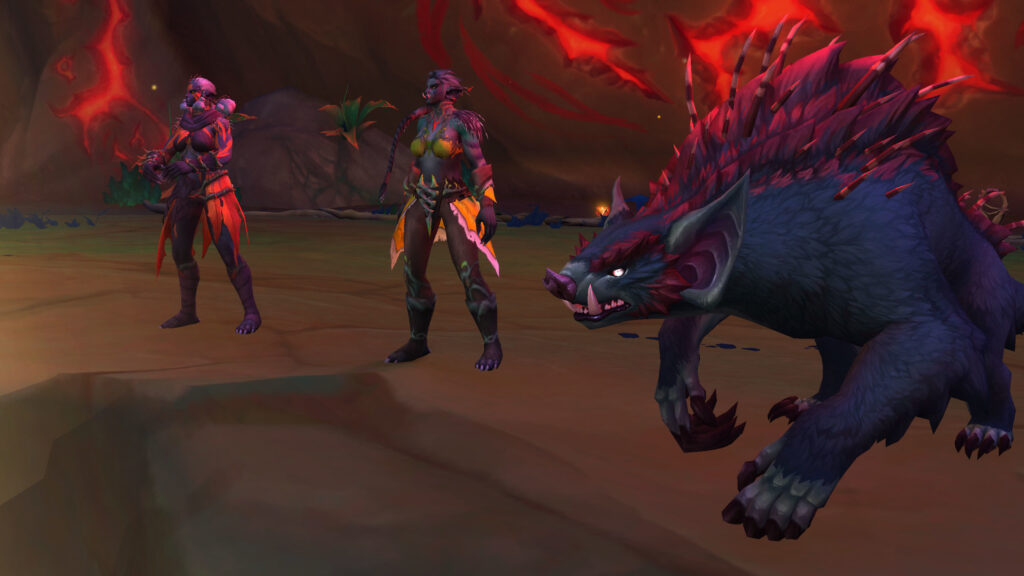
While the texture resolution toggle is an effective temporary fix, it is not a permanent solution, and players who find themselves needing to toggle textures frequently should consider the following permanent settings adjustments that reduce the texture streaming load and mitigate the FPS drop issue without requiring manual intervention during gameplay:
- Reduce Texture Resolution by One Tier: If you are currently running Ultra texture resolution, drop down to High texture resolution. The visual difference between Ultra and High is minimal in most scenarios, but the memory footprint reduction is significant enough to prevent the texture streaming memory leak from accumulating to performance-degrading levels during extended play sessions.
- Lower Cached Texture Limit: In the Advanced Graphics settings, reduce the “Cached Texture Limit” setting from “High” to “Medium” or “Low.” This setting controls how many textures the game keeps in memory for quick access, and reducing it limits the maximum memory consumption of the texture cache, preventing the memory leak from growing large enough to impact framerate.
- Enable Texture Filtering Optimization: Ensure that the “Texture Filtering” setting is set to “Trilinear” or “Bilinear” rather than “Anisotropic 16x” if you are experiencing FPS drops in Void-corrupted zones. Anisotropic filtering at 16x is the most visually appealing option but also the most memory-intensive, and reducing it to Trilinear provides a noticeable FPS improvement in texture-heavy zones like the Ghostlands with only a modest reduction in visual quality at oblique viewing angles.
Optimal Graphic Settings for Ghostlands Performance
The Ghostlands zone in Midnight is the most graphically demanding area in the expansion due to its combination of Void-corrupted terrain, necrotic Scourge-era residual effects, and dynamic Void storm particle effects that tax the GPU and CPU simultaneously. The following graphic settings configuration is optimized for Ghostlands performance while maintaining visually acceptable quality for the zone’s atmospheric Void and necrotic aesthetic.
| Setting | Recommended Value | Performance Impact |
|---|---|---|
| Graphics API | DirectX 11 (Legacy) | Eliminates shader compilation stuttering |
| Texture Resolution | High (not Ultra) | Reduces memory leak accumulation |
| Global Illumination | Medium | Moderate GPU load reduction |
| Shadow Quality | Medium | 10-15% FPS increase over High |
| Particle Density | Medium or Low | 20-25% FPS increase in Void storm areas |
| Volumetric Light Shafts | Disabled or Low | Highest single-setting FPS impact |
| View Distance | 7-8 | Reduces CPU draw call overhead |
| Anti-Aliasing | CMAA Fastest | Minimal visual sacrifice, good FPS |
| Cached Texture Limit | Medium | Prevents texture memory leak growth |
| Max Foreground FPS | 60 (or your monitor’s refresh rate) | Prevents unnecessary GPU overwork |
The two settings with the largest individual impact on Ghostlands FPS are Volumetric Light Shafts and Particle Density. Volumetric Light Shafts are responsible for the dramatic light beams that emanate from Void rifts and the Sunwell energy sources in the Ghostlands, and they are the most GPU-intensive visual effect in the expansion. Disabling Volumetric Light Shafts or reducing them to Low provides the single largest FPS improvement of any individual setting change, and the visual sacrifice is acceptable given the performance benefit in the most demanding zones.
Particle Density controls the number of particle effects (Void energy wisps, necrotic corruption animations, and Void storm weather effects) that are rendered simultaneously in the Ghostlands, and reducing it from Ultra to Medium or Low dramatically improves FPS in areas where multiple Void rifts are active and the screen is filled with overlapping particle effects. The Medium Particle Density setting still renders enough particle effects to maintain the Ghostlands’ atmospheric Void and necrotic aesthetic, but it eliminates the excess particles that cause GPU overload during the most visually complex encounters.
Hardware-Specific Recommendations
Different hardware configurations benefit from different optimization strategies, and the following hardware-specific recommendations provide targeted guidance for the most common PC configurations that are running World of Warcraft: Midnight.
For RTX 40-series and RX 7000-series (High-End): These GPUs can handle Midnight’s Void Lighting Engine on DirectX 12 without stuttering issues, so high-end GPU players should try DirectX 12 first and only switch to DirectX 11 if they experience stuttering. Texture Resolution can be set to Ultra, Global Illumination to High, and Volumetric Light Shafts to Medium, providing excellent visual quality while maintaining 60+ FPS in most zones. In the Ghostlands, reduce Particle Density to Medium and Volumetric Light Shafts to Low to prevent FPS drops during Void storm events.
For RTX 30-series and RX 6000-series (Mid-Range): These GPUs perform best on DirectX 11 with the settings configuration outlined in the table above. Texture Resolution should be set to High, Global Illumination to Medium, and Shadow Quality to Medium, with Volumetric Light Shafts disabled entirely for the best Ghostlands performance. These settings will provide 50-60 FPS in most Quel’Thalas zones with smooth frame pacing and no stuttering.
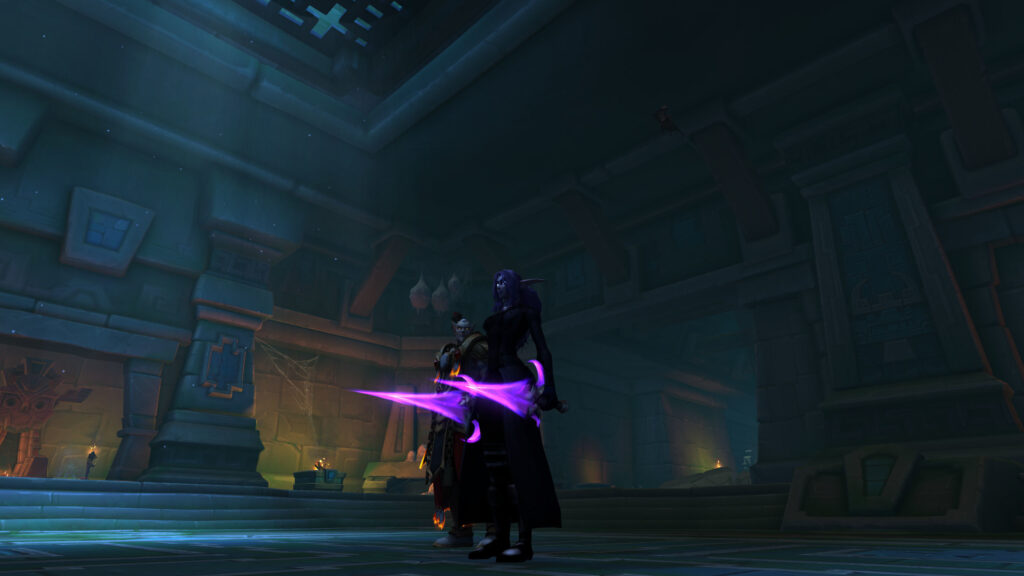
For GTX 1660 / RX 5600 XT (Minimum Spec): Players running the minimum recommended GPU should use DirectX 11 with all settings at Low-Medium, Texture Resolution at Medium, View Distance at 5-6, and all advanced effects (Global Illumination, Volumetric Light Shafts, advanced Shadow Quality) disabled entirely. These settings will provide 30-45 FPS in most zones, which is playable for questing and world content but may require further reductions for raid and Mythic+ dungeon content where frame rate is more critical for mechanical execution.
The Midnight graphic settings optimization landscape will continue to evolve as Blizzard releases patches that address the DirectX 12 shader compilation stuttering and the texture streaming memory leak issues that the community has identified, and players should monitor patch notes and community feedback for official fixes that may eliminate the need for the workarounds described in this guide. Until those fixes arrive, the DirectX 11 switch, texture resolution toggle workaround, and the optimized settings configuration outlined above will provide the smoothest and most stable Midnight gameplay experience available on current hardware.